![logo_ezt_white.png]](https://support.eezytrace.com/hs-fs/hubfs/logo_ezt_white.png?height=40&name=logo_ezt_white.png)
Only want to update SureMDM? Follow steps 1 to 7 below: the new version installs over the old one. Then open the SureMDM Agent app: the installed version is shown at the bottom of the page.
Below is a video that will guide you through the process of installing SureMDM on your tablet:
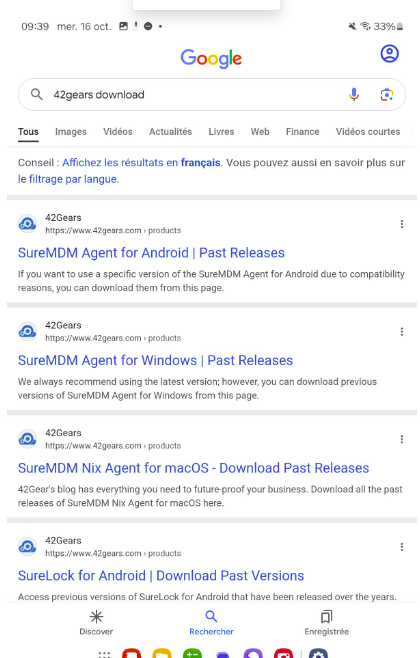
- Launch a Google search by clicking on the Google bar, then search for “42GEARS DOWNLOAD” and click on the first link, “SureMDM Agent for Android / Past Releases”
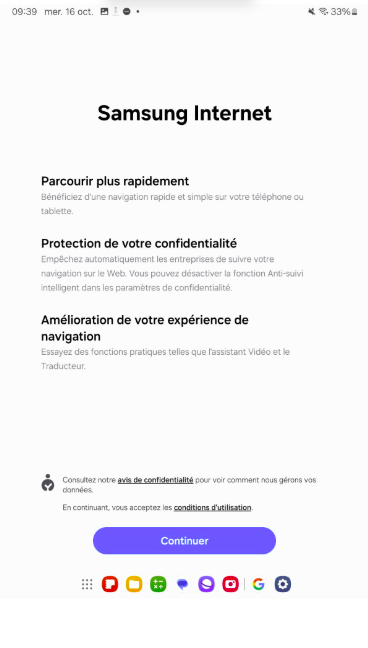
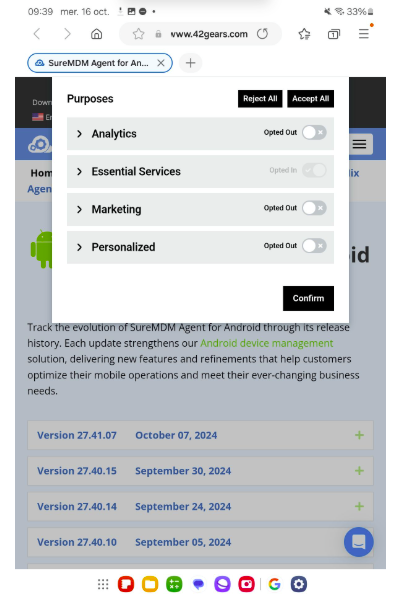
2. Accept Samsung’s terms and conditions by clicking “Continue” and accept cookies by clicking “Confirm”
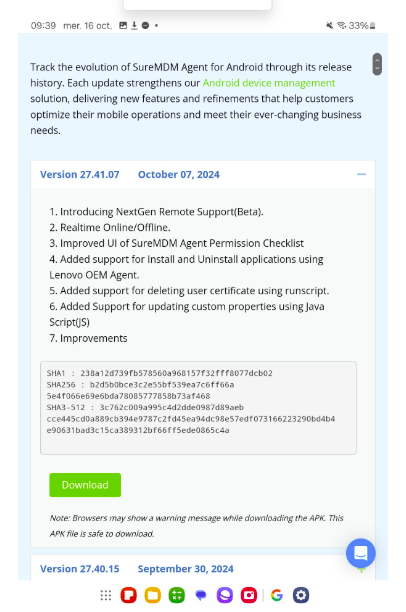
3. Click the “+” to the right of the latest version and download the file by clicking “Download”
4. Allow the download: tick “I am not a robot”, then click “Continue”. A download link is copied to the clipboard (valid for 1 hour): delete the address in the URL bar, paste this link, then press Enter to start the download.
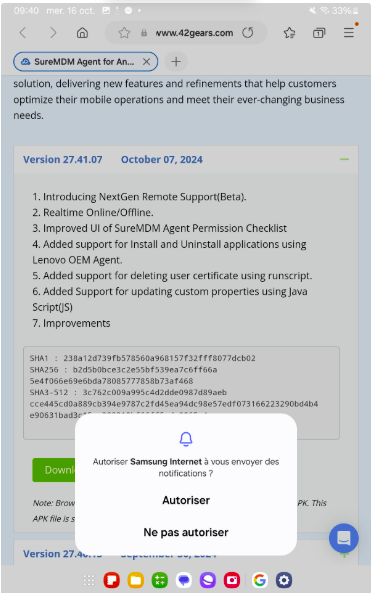
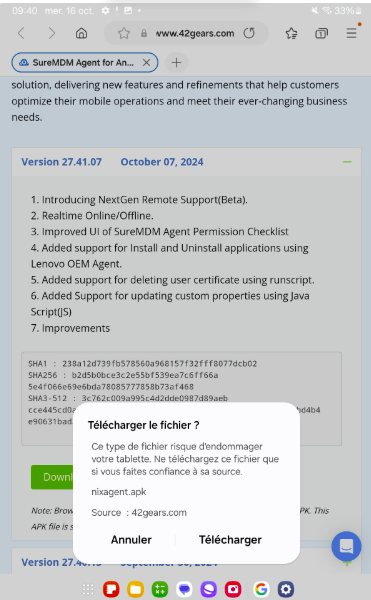
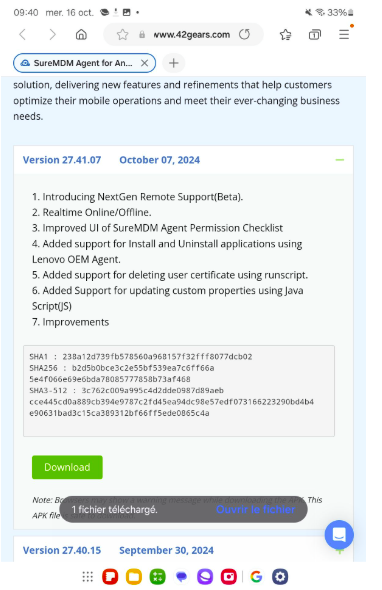
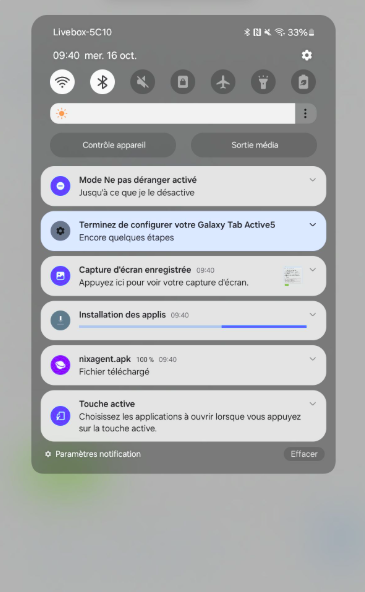
5. Open the file by clicking “Open”; if the notification bar disappears, open the notification center by swiping down from the top of the screen and tap the “nixeagent.apk” entry to open it
6. Complete the installation by allowing app installation from the Internet. Click “Settings,” check the box, and then click “Install”
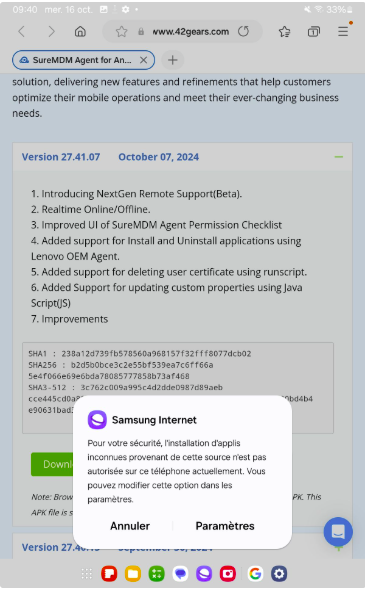
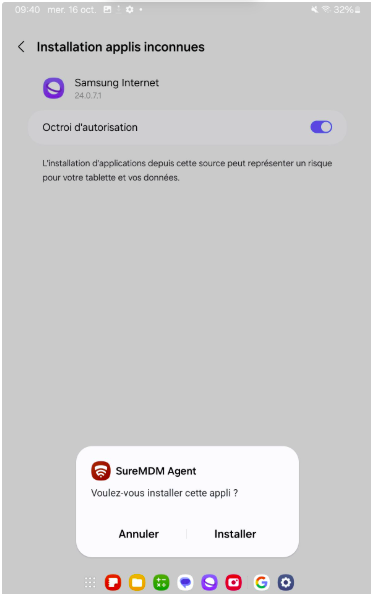
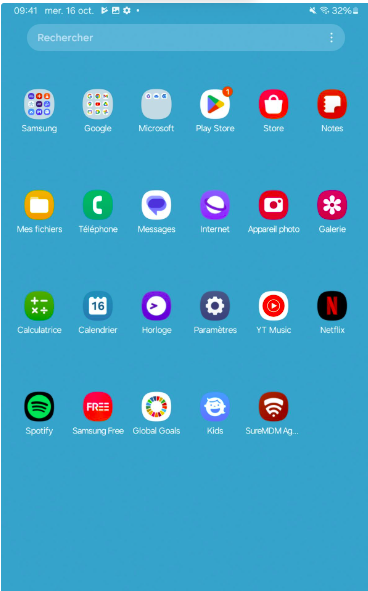
7. Once the installation is complete, close the page and return to the home screen. Open the app drawer by swiping up and open the “SureMDM Agent” app
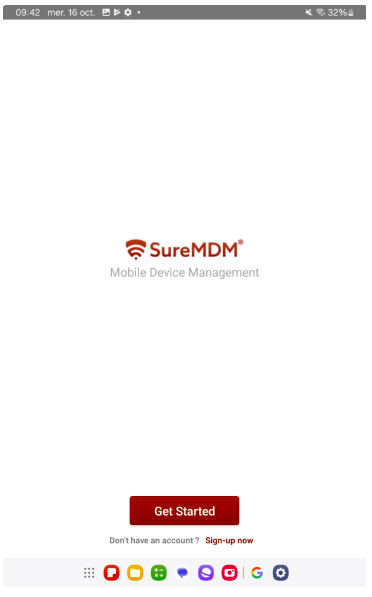
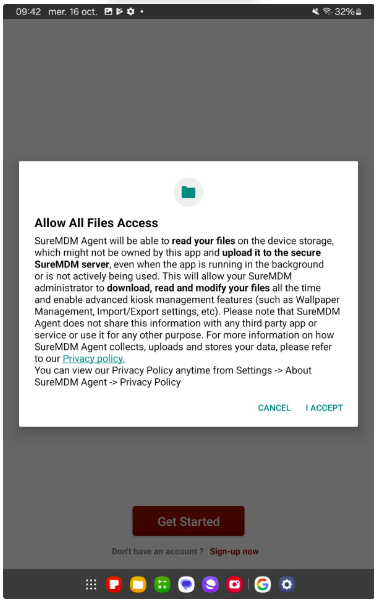
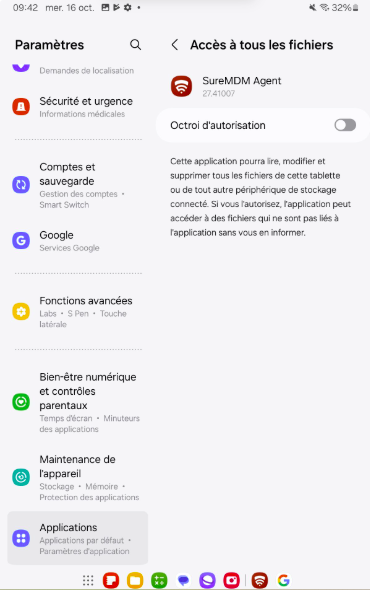
8. Click “Get started” and “I accept,” check the authorization box, and go back using the physical “back” button
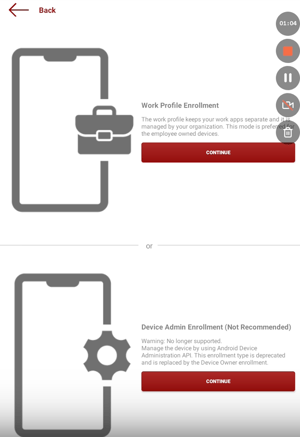
You have two options:
-
Work Profile Enrollment
-
Device Admin Enrollment
👉 Select Device Admin Enrollment.
Two ways to connect:
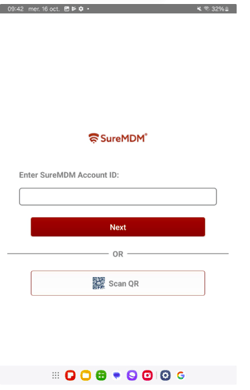
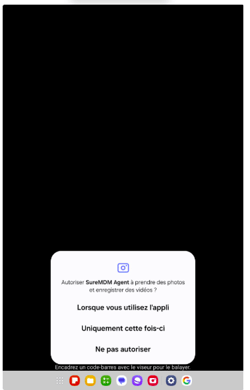
Scan the QR code:
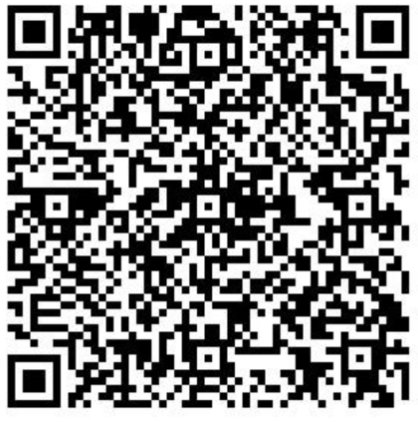
- ID: provided by Eezytrace support (+33 9 75 18 28 32)
- Server Path: suremdm.42gears.com
- In the device name field, check:
use systeme generated name
| Parameter | Value |
|---|---|
| Enrollment Mode | Device Admin Enrollment |
| Account ID Number | provided by Eezytrace support (+33 9 75 18 28 32) |
| Server Path | suremdm.42gears.com |
| Device Name | Use system-generated name |
Check Settings
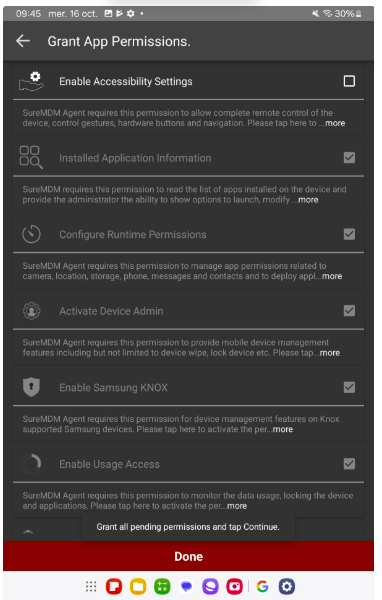
On the next page, make sure all indicators are green, except possibly Accessibility, which is not required (Grant all permissions in the list so that the indicators change from red to green, except for “Enable Accessibility Settings”; everything must be allowed).
Click Continue:
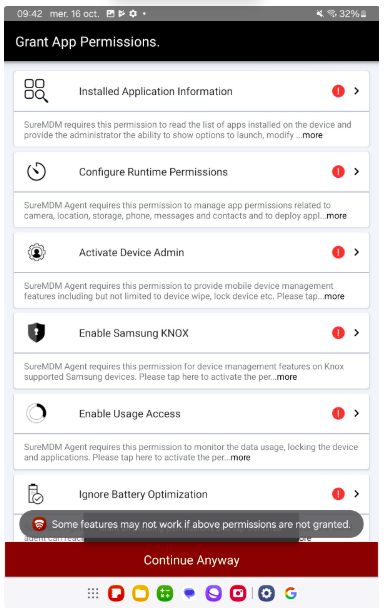
If the permissions page closes, restart the app and click “Settings,” scroll through the menu, and click “SureMDM Agent Permissions checklist”
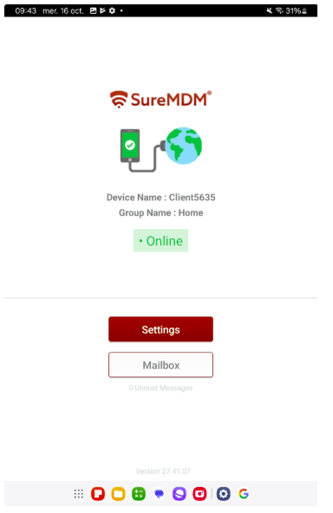
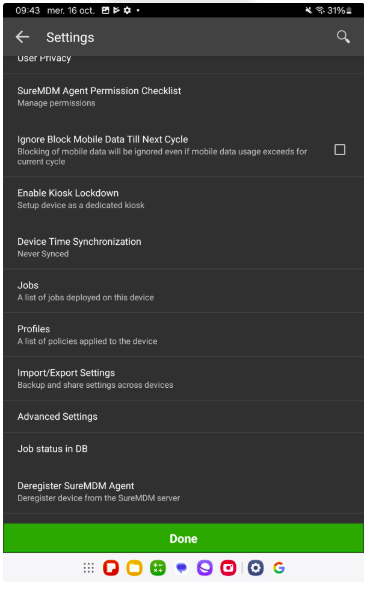
Once all items are checked (except “Enable Accessibility Settings”), click “Done”.
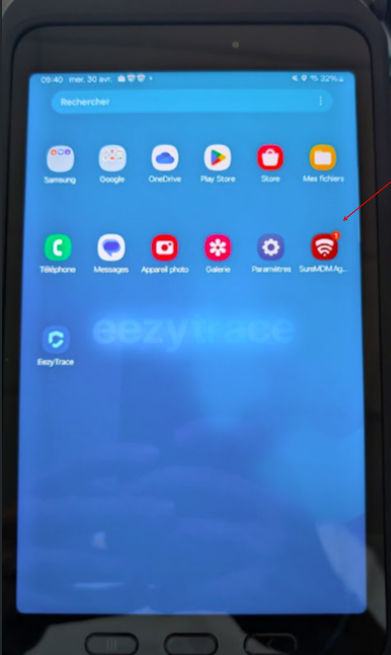
On the tablet’s home screen, swipe up to access all apps.
-
-
Open the SureMDM Agent app.
-
At this stage, provide the customer number displayed on the screen either by email to assistance@eezytrace.com or by phone at +33 9 75 18 28 32.
-