![logo_ezt_white.png]](https://support.eezytrace.com/hs-fs/hubfs/logo_ezt_white.png?height=40&name=logo_ezt_white.png)
Steps to authorize other apps:
1. Go to the admin settings
-
Quickly tap the screen 5 times until a password entry window appears.
-
Enter the password provided by support to unlock access to system settings.
-
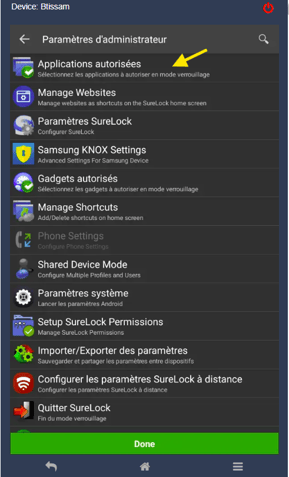
Access the admin settings
-
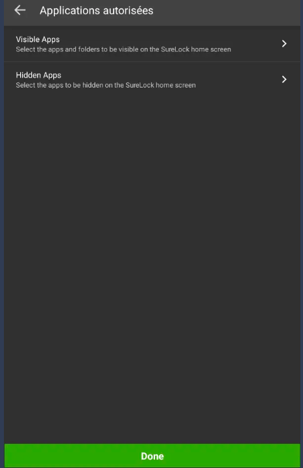
Go to the Authorized Apps menu.
-
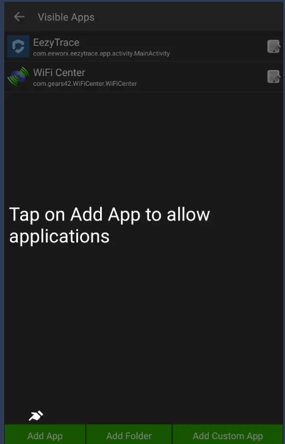
Tap Visible Apps.
3. Add visible apps
-
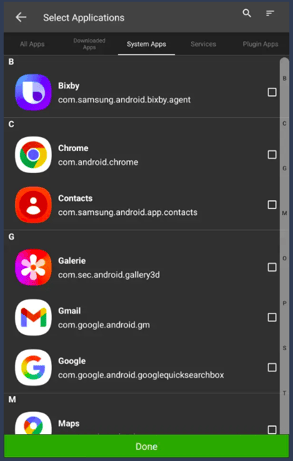
In this menu, you can check the apps you want to make visible on the lock screen.
-
If the desired app isn’t installed yet, proceed to the next step.
4. Download a new app (if necessary)
-
Open the Play Store.
-
Search for and install the desired app (for example, a clock app).
-
Once installed, go back to Admin Settings > Authorized Apps > Downloaded App.
-
Check the app to authorize it.
5. Exit settings
-
Once you’ve selected your apps, you can exit the settings.
-
These apps will now be visible and usable from the tablet’s lock screen.
Installing an app not available on the Play Store
If the app you want to install isn’t available on the Play Store, you have two options:
-
Submit a support request:
Please send an email to assistance@eezytrace.com and attach the APK of the app you want to install.
Support will then be able to remotely push a job, allowing the app to be installed on one or more tablets if necessary. -
Manually install the APK (for a single tablet)
You can also open Google on the tablet, search for the app’s APK, download it, and then install it manually.