![logo_ezt_white.png]](https://support.eezytrace.com/hs-fs/hubfs/logo_ezt_white.png?height=40&name=logo_ezt_white.png)
🔓 Step 1: Unlock the tablet to access the settings
-
On the tablet screen, tap 5 times quickly.
-
A text entry window will open.
-
Enter the password provided by support.
🛡️ This password is confidential: if you don’t have it, contact Eezytrace support.
⚙️ Step 2: Access system settings
Once you’ve entered the password, go to System Settings.
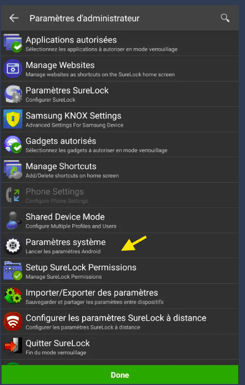
-
Scroll through the list and tap "System Update" or "Software Update":
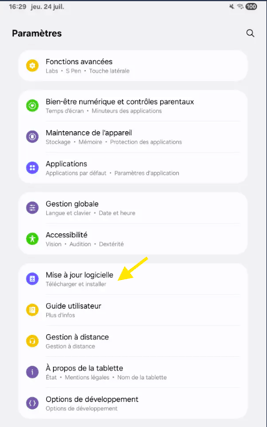
🔄 Step 3: Check for updates
-
Check for updates:
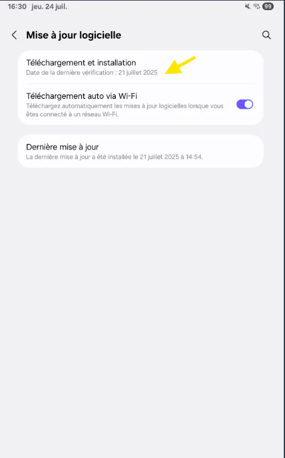
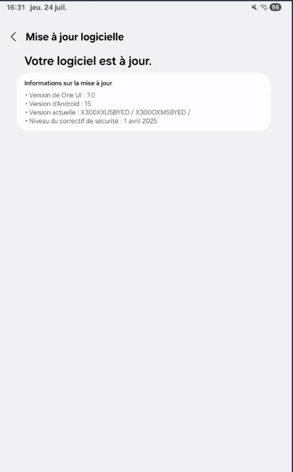
-
If an update is available, follow the instructions to install it.
-
The tablet may restart during installation.
🕒 This may take a few minutes. Make sure the tablet is fully charged or plugged into a power source.