![logo_ezt_white.png]](https://support.eezytrace.com/hs-fs/hubfs/logo_ezt_white.png?height=40&name=logo_ezt_white.png)
Steps to update SureMDM:
-
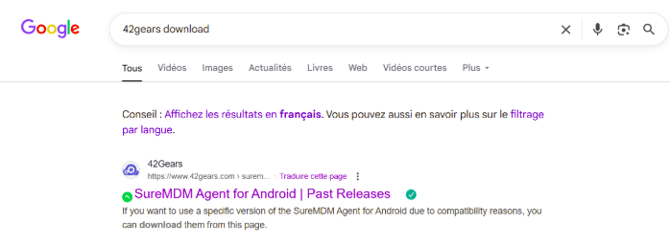
Open Google and search for the update
-
Click on the Google search bar.
-
Type “42gears download”.
-
Click on the first link: “SureMDM Agent for Android / Past Releases”.
-
-
Accept the terms
-
On the 42Gears website, click “Continue” to accept Samsung’s terms and conditions.
-
Click “Confirm” to accept cookies if the message appears.
-
-
Download the latest version
-
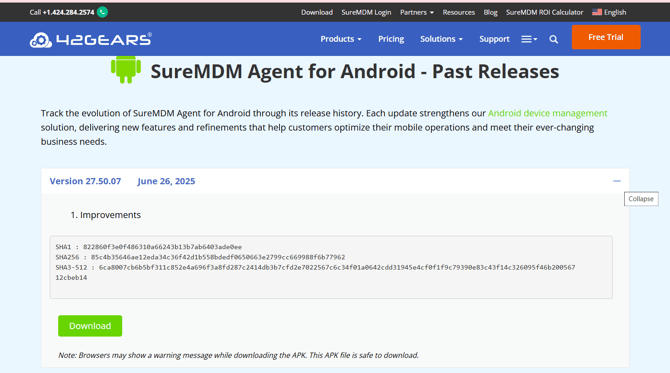
Click the “+” to the right of the latest available version (the first line).
-
Then click “Download” to start the download.
-
-
Authorize and start the download
-
Click “Allow” if a window asks for permission to download.
-
Then click “Download” to confirm.
-
-
Open the downloaded file
-
Click “Open” as soon as the download is complete.
-
If the notification disappears, swipe down from the top of the screen to open the notification center.
-
Tap the “nixeagent.apk” entry to open the installation file.
-
-
Allow installation
-
A prompt may appear asking you to allow installations from this source.
-
Tap “Settings,” then check “Allow from this source.”
-
Go back and tap “Install.”
-
-
Complete the update and launch the app
-
Once the update is complete, click “Done” or “Open.”
-
If you click “Done,” return to the home screen.
-
Swipe up to view all apps.
-
Open “SureMDM Agent” to ensure the app is working properly and verify that the latest version is installed (visible at the bottom of the page).
-