![logo_ezt_white.png]](https://support.eezytrace.com/hs-fs/hubfs/logo_ezt_white.png?height=40&name=logo_ezt_white.png)
Background:
If SureMDM is malfunctioning, support may ask you to reset the tablet’s remote management settings:
First, check the SureMDM permission "Enable Nix Service":
-
-
Tap the screen 5 or 6 times
-
Enter the temporary password provided by support, then tap “OK”
-
Once in the Administrator Settings, select “Configure SureLock Settings Remotely”
-
Then click “Settings”
-
Uncheck and then recheck the first box “Enable Nix Service”
-
If the problem persists, support will ask you to reset the settings:
All steps are explained in this video:
Step 1: Access SureMDM
-
On the tablet, open the SureMDM app to go to the home screen.
-
Click on Settings.
-
Scroll down to Import/Export Settings.
-
Select Reset Settings.
-
Confirm the action by tapping Reset.
Step 2: Complete the reset
-
Once the reset is complete, tap the DONE button once.
-
Tap DONE again to confirm.
You will then be redirected to the SureMDM home page, where a GET START button will appear at the bottom of the screen.
Step 3: Choose the enrollment mode
You have two options:
-
Work Profile Enrollment
-
Device Admin Enrollment
👉 Select Device Admin Enrollment.
Step 4: Check the settings
On the next page, make sure all indicators are green, except possibly Accessibility, which is not required.
-
Click Continue.
Step 5: Enter login information
Enter the following information:
-
Account ID Number: provided by Eezytrace support (+33 9 75 18 28 32)
-
Server Path:
suremdm.42gears.com -
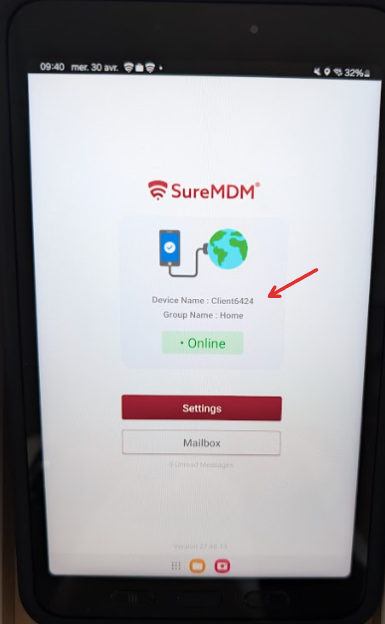
In the device name field, check:
use systeme generated name
⚠️ At this point, the tablet should automatically retrieve its previous name. If it does not, it will display a generic name such as "client" followed by a few numbers.
Summary of important information:
| Setting | Value |
|---|---|
| Enrollment Mode | Device Admin Enrollment |
| Account ID Number | provided by Eezytrace support (+33 9 75 18 28 32) |
| Server Path | suremdm.42gears.com |
| Device Name |
|
Please provide the customer number displayed on the screen either by email to assistance@eezytrace.com or by phone at +33 9 75 18 28 32.