![logo_ezt_white.png]](https://support.eezytrace.com/hs-fs/hubfs/logo_ezt_white.png?height=40&name=logo_ezt_white.png)
📶 Check the tablet’s Wi-Fi connection
A good Wi-Fi connection is essential to use your tablet. If you have trouble accessing the Internet, here is how to check that the tablet is connected to a Wi-Fi network.
Go to the tablet’s home screen.
Open the Wifi Center app.
Check that one of the networks is ticked.

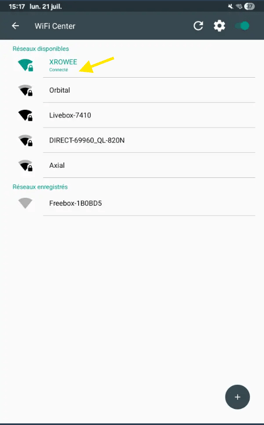
You can also check the Wi-Fi connection directly in the tablet’s system settings:
🔓 Step 1: unlock the tablet
Tablets are locked to prevent unauthorized changes. To access the system settings (see the detailed procedure):
Quickly tap the screen 5 times until a password window appears.
Contact support to get the temporary password: +33 9 75 18 28 32 · assistance@eezytrace.com
Enter the password to access the administrator settings.
🌐 Step 2: open the Wi-Fi settings
Once the tablet is unlocked, open the System settings.
Go to the Wi-Fi or Networks menu.
Make sure Wi-Fi is on.
📡 Step 3: check the connection
If the tablet is connected, you will see the network name with “Connected” or an active connection icon.
If no network is connected: select your Wi-Fi network in the list, enter the Wi-Fi password if needed and wait a few moments.
🛠️ Step 4: if there is a problem
If the tablet does not connect:
Check that the Wi-Fi network works (try with another device).
Make sure the tablet is close to the router.
Restart the tablet or the router if needed.
🛠️ Step 5: check that the tablet can reach our server
A tablet can be connected to Wi-Fi but still be unable to reach the Internet and our servers.
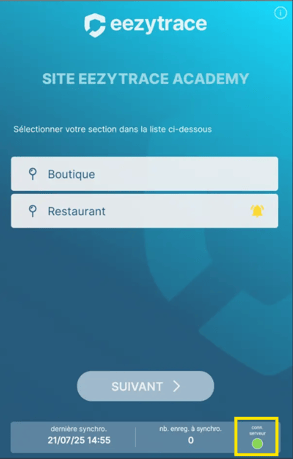
Go to the user page.
Tap the circle in the bottom right corner.
A pop-up window appears.
Red result: the network cannot communicate with our servers, so data cannot be exchanged. Contact your IT department so that it allows the tablet to access our servers.
Green result: the connection works correctly.
🤝 Need help?
Our support team can help you at every step:
📧 assistance@eezytrace.com · 📞 +33 9 75 18 28 32