![logo_ezt_white.png]](https://support.eezytrace.com/hs-fs/hubfs/logo_ezt_white.png?height=40&name=logo_ezt_white.png)
Display, synchronization or other problems can sometimes come from an outdated version of the Eezytrace app. Here is how to check your version directly in the app.
📲 Steps to check the app version
Open the Eezytrace app on your tablet.
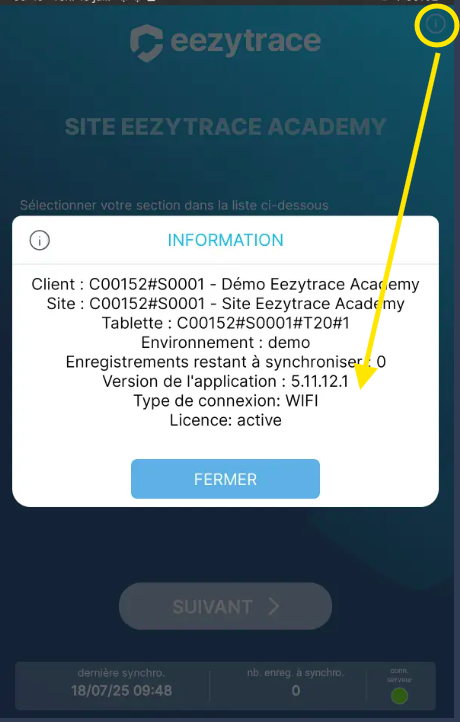
On the home screen (the list of users), find the “i” icon at the top right, next to the logo.
Tap the “i” icon.
An information window opens. It shows:
the customer
the site
the tablet number (format
C000XXX#S00XX#T0X#X)the Eezytrace app version
🛠 Important: the version shown must be the latest version released by Eezytrace. Otherwise, bugs may occur.
❓ What to do if the version is not up to date?
Update the app from the Play Store: open the Play Store on the tablet, search for “Eezytrace” and tap Update. If the Play Store is not visible (locked tablet) or the update fails, Eezytrace support can update it remotely: +33 9 75 18 28 32 · assistance@eezytrace.com.
If the tablet is not an Eezytrace tablet and is managed by an external IT support, contact them so they can update the Eezytrace app.