![logo_ezt_white.png]](https://support.eezytrace.com/hs-fs/hubfs/logo_ezt_white.png?height=40&name=logo_ezt_white.png)
1. Turn on the printer's Bluetooth
Make sure the printer's Bluetooth is turned on. If necessary, consult your printer's manual to find out how to enable this feature.
Turn the printer off and then back on; sometimes this is enough to restore the connection between the printer and the tablet.
If the problem persists, follow these steps:
2. Pairing via Bluetooth Manager

-
Open Bluetooth Manager
Search for and open the Bluetooth Manager app on the tablet. -
View the list of devices
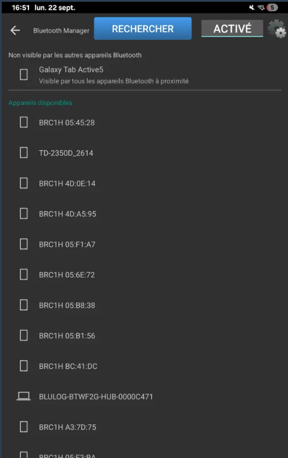
Once the app is open, the tablet displays a list of nearby devices with Bluetooth enabled:
-
Find the printer
In this list, locate the name of your printer. -
Pair the tablet and the printer
Tap the printer’s name, then confirm the connection. The tablet will request pairing permission. -
Connection established
Once the printer is connected, the tablet can use it to print.
If the connection cannot be established via Bluetooth Manager, another solution is to unlock the tablet, access the system settings, and then establish the connection from that menu:
3. Unlock the tablet to access system settings
Tablets are locked to prevent unauthorized changes.
Here’s how to access them:
-
Quickly tap the screen 5 times until a password entry window appears.
-
Contact our support team to obtain the temporary password.
📞 +33 9 75 18 28 32 ✉️assistance@eezytrace.com -
Enter the provided password to unlock access to system settings.
3. Go to Bluetooth settings
Once in System Settings:
-
Open the Bluetooth Connection tab.
-
Turn on Bluetooth if it isn’t already.
-
Wait a few seconds while the tablet searches for nearby devices.
4. Check if the printer is detected
-
Make sure the printer appears in the list of available devices.
-
If it does not appear:
-
Check that the printer is turned on.
-
Make sure it is close to the tablet.
-
5. Establish the connection
-
When the printer appears, select it from the list to start pairing.
-
The connection should be established in a few seconds.
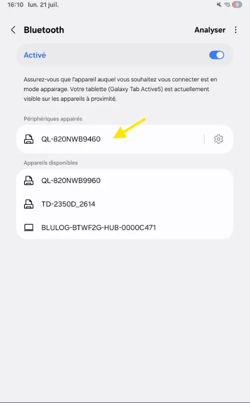
Once pairing is complete, the printer will appear under “Paired Devices”
📩 Need help?
If you encounter any difficulties or have further questions, please don’t hesitate to contact us:
📧 assistance@eezytrace.com
📞+33 9 75 18 28 32