![logo_ezt_white.png]](https://support.eezytrace.com/hs-fs/hubfs/logo_ezt_white.png?height=40&name=logo_ezt_white.png)
We recommend uninstalling app updates or clearing the storage data of the apps installed on your tablet, sorting them by size.
Important: do not touch the Eezytrace app.
To access the system settings, quickly tap the screen 5 times until a password window appears. Support will give you the password by phone. Then:
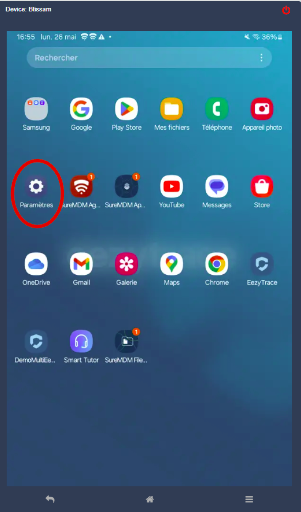
Go to the tablet’s home screen and open Settings:
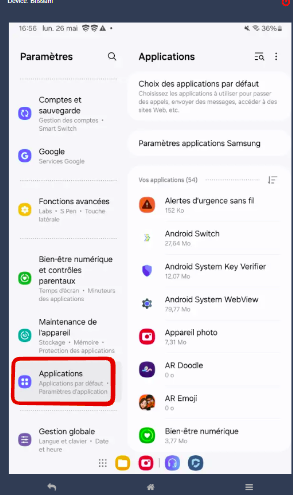
Go to Apps:
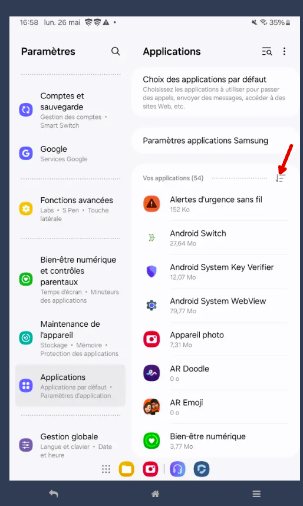
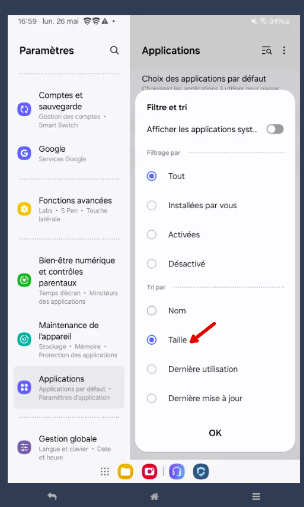
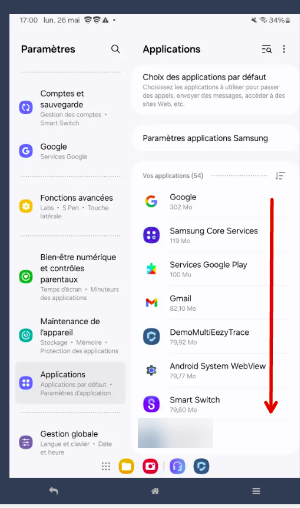
You will see the list of installed apps. Sort the list by size:
Clean the apps that take up the most space first:
⚠️ Do not delete the Eezytrace data.
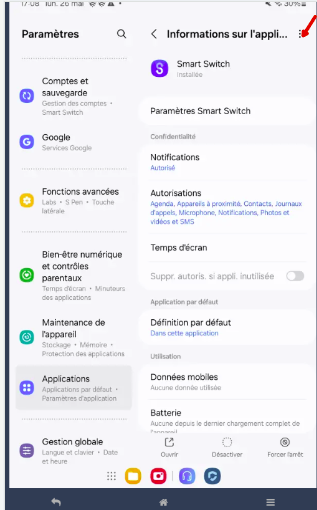
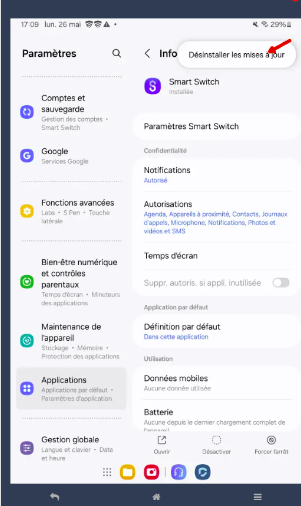
If the “Uninstall updates” option is available, tap the three vertical dots at the top right of the app information to go back to the original version of the app:
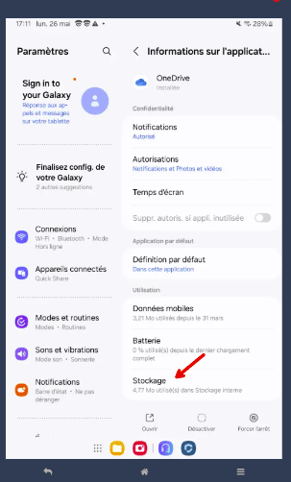
Otherwise, in the app settings, open Storage, then Clear data and Clear cache:
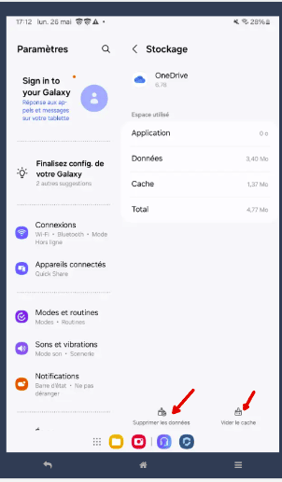
By doing this for the installed apps (except Eezytrace), you should free up space and make your tablet run better.
Need help? Contact Eezytrace support: assistance@eezytrace.com · +33 9 75 18 28 32